
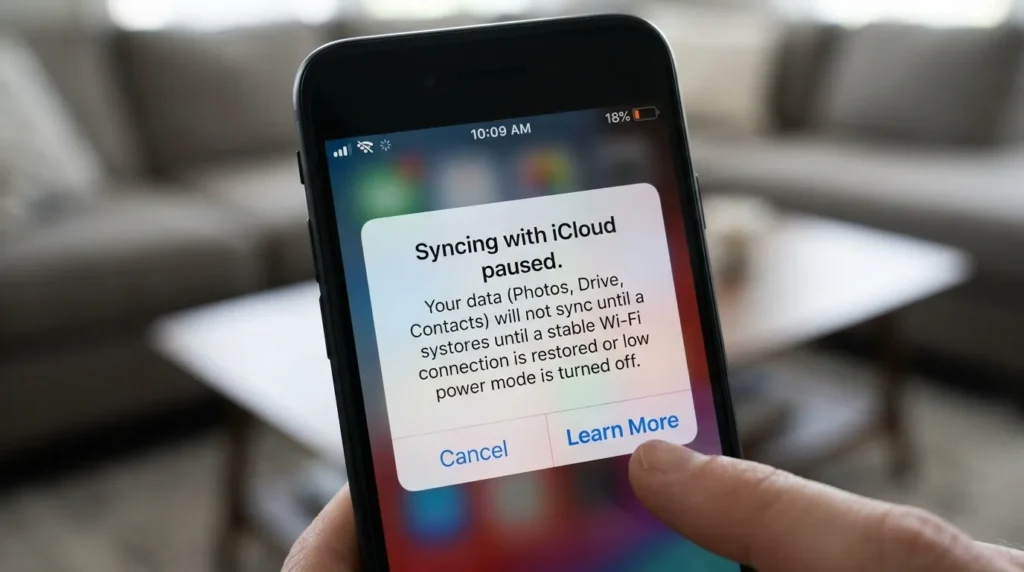
If you’ve ever opened your iPhone, iPad, or Mac and noticed the message “Syncing with iCloud Paused,” you’re probably wondering what it means and whether something is wrong with your device.
This notification can appear unexpectedly and often leaves users concerned about their photos, files, contacts, notes, and other important data stored in iCloud.
The good news is that this message usually doesn’t indicate a serious problem.
In most cases, it simply means that iCloud has temporarily stopped syncing your data due to a network issue, low battery, insufficient storage, software settings, or other common factors.
In this guide, you’ll learn exactly what “Syncing with iCloud Paused” means, why it happens, how it affects your data, and the best solutions to get iCloud syncing working again.
By the end, you’ll know how to troubleshoot the issue quickly and keep your Apple devices syncing smoothly.
What Does “Syncing With iCloud Paused” Mean?
When Apple displays the message “Syncing with iCloud Paused,” it means your device has temporarily stopped uploading or downloading data from iCloud.
Normally, iCloud continuously synchronizes information between your Apple devices. When syncing is paused, changes made on one device may not immediately appear on another device until synchronization resumes.
Examples include:
- New photos not appearing on other devices
- Notes failing to update
- Contacts not syncing
- Messages not backing up
- Files not uploading to iCloud Drive
The pause is usually temporary and can often be resolved quickly.
Why Does iCloud Syncing Get Paused?
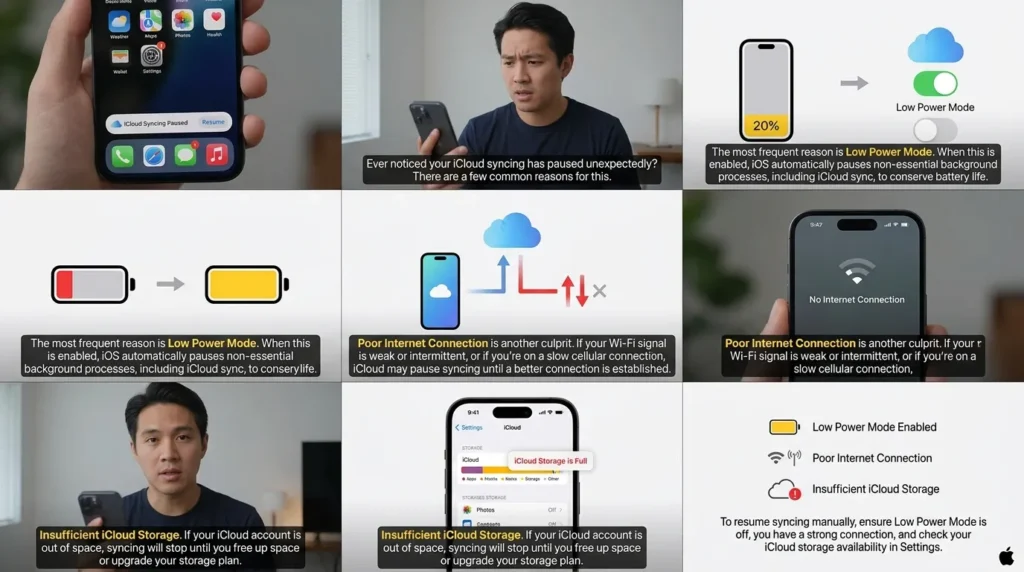
Several factors can cause iCloud synchronization to stop.
Common causes include:
- Poor internet connection
- Low battery or Low Power Mode
- Insufficient iCloud storage
- Apple server issues
- Software bugs
- Incorrect iCloud settings
- Device overheating
- VPN or network restrictions
Understanding the cause helps you apply the correct fix.
Internet Connection Problems
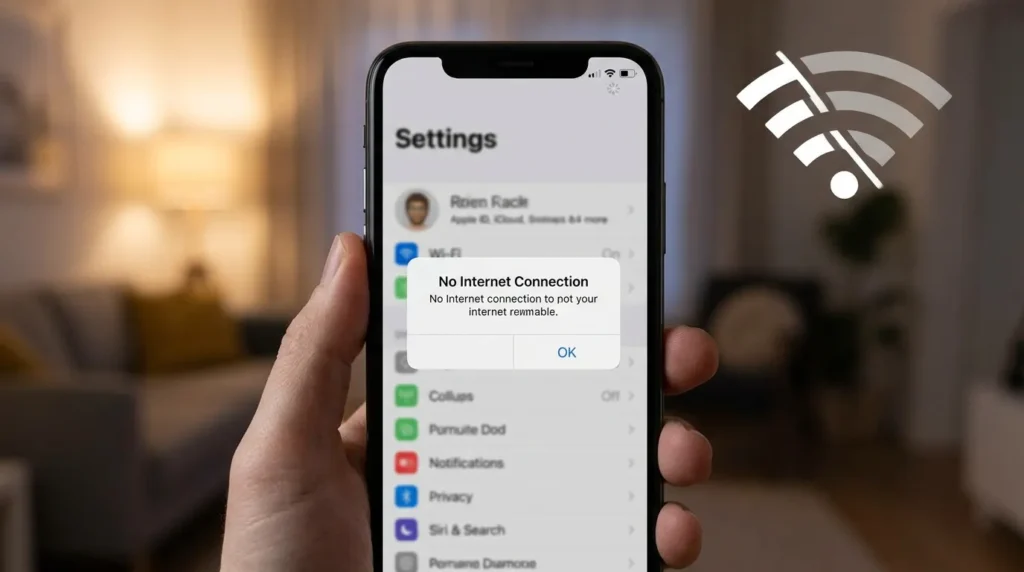
A stable internet connection is essential for iCloud synchronization.
If your Wi-Fi signal is weak or your cellular data connection is unstable, iCloud may temporarily pause syncing until a stronger connection becomes available.
Signs of Connection Issues
- Slow internet browsing
- Apps failing to refresh
- Uploads taking a long time
- Cloud services not updating
Fix
- Connect to reliable Wi-Fi
- Restart your router
- Toggle Airplane Mode on and off
- Disable VPN temporarily
Low Power Mode Can Pause iCloud Syncing
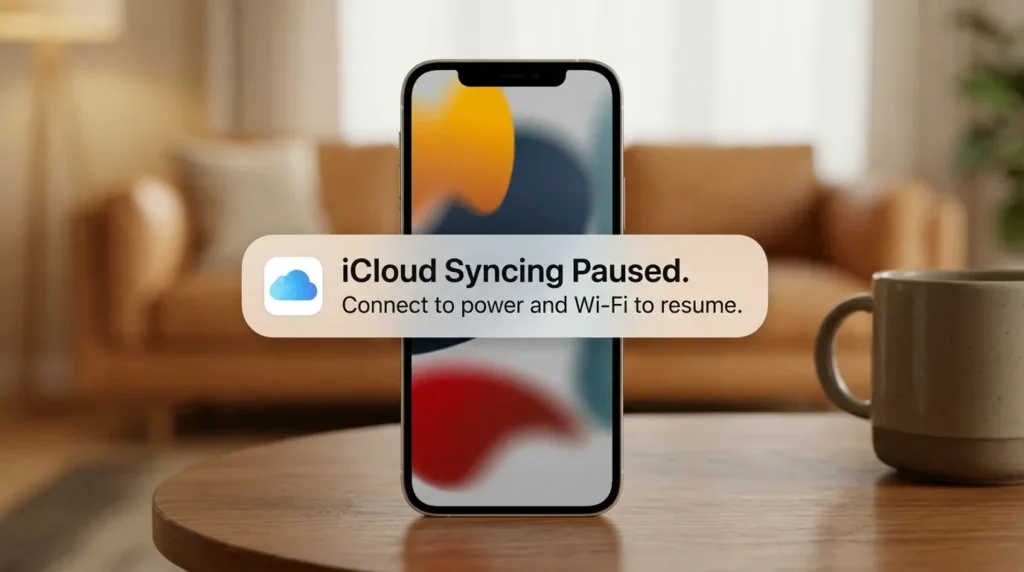
Apple prioritizes battery life when your device enters Low Power Mode.
To conserve energy, some background activities—including iCloud syncing—may be reduced or paused.
How to Check
- Open Settings.
- Tap Battery.
- Look for Low Power Mode.
Fix
Turn off Low Power Mode and connect your device to a charger.
Insufficient iCloud Storage
One of the most common reasons for paused syncing is a lack of available iCloud storage.
When your iCloud account becomes full, new data cannot upload successfully.
How to Check Storage
- Open Settings.
- Tap your Apple ID.
- Select iCloud.
- View available storage.
Fixes
- Delete unnecessary backups
- Remove old files
- Delete duplicate photos
- Upgrade your iCloud storage plan
Apple Server Issues
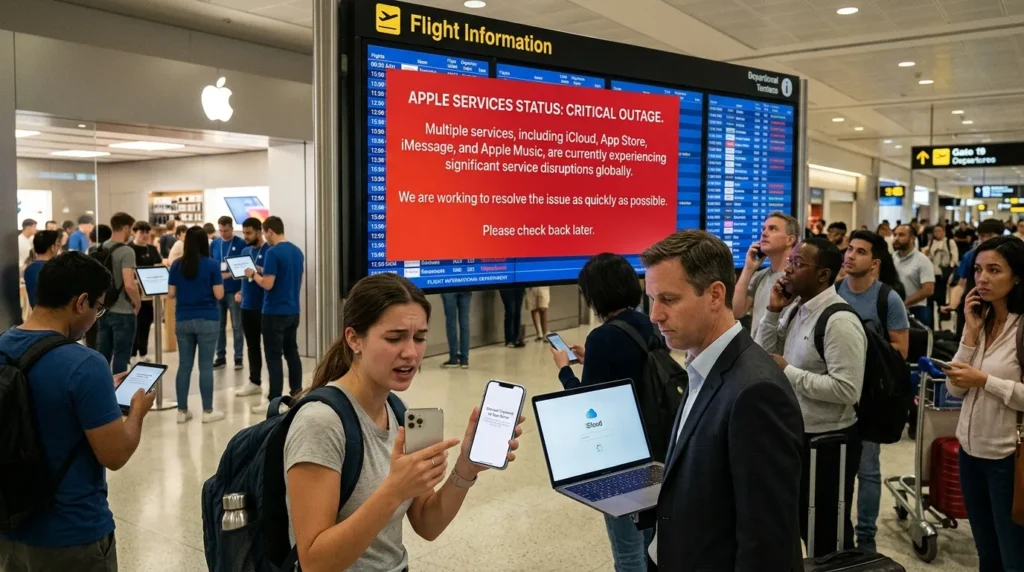
Sometimes the problem isn’t on your device at all.
Apple’s iCloud servers occasionally experience outages or maintenance periods that temporarily affect syncing services.
Signs
- Multiple Apple services not working
- Friends reporting similar issues
- Syncing suddenly stops on all devices
Fix
Wait for Apple to resolve the issue and try again later.
Software Bugs and iOS Glitches
Software bugs can occasionally interfere with iCloud synchronization.
A temporary system glitch may prevent communication between your device and Apple’s servers.
Fixes
- Restart your device
- Update iOS or macOS
- Sign out and back into iCloud
- Force-close affected apps
Keeping software updated reduces the likelihood of syncing problems.
Incorrect iCloud Settings
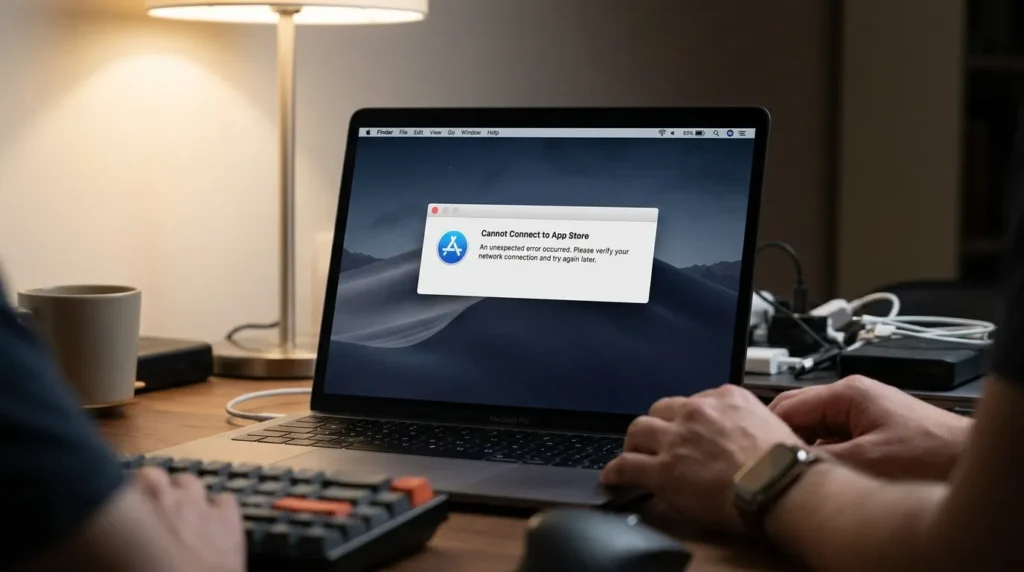
Sometimes syncing is paused because a particular service is disabled.
For example, Photos, Notes, Contacts, or Messages may not be allowed to sync.
Check Your Settings
- Open Settings.
- Tap your Apple ID.
- Select iCloud.
- Verify that desired services are enabled.
Turn on syncing for the services you want to use.
Device Storage Is Full
Even if iCloud has available space, your device itself may be running out of storage.
A nearly full iPhone or iPad can struggle to process synchronization tasks.
Fix
- Delete unused apps
- Clear downloaded media
- Remove large files
- Offload unused applications
Maintaining free storage improves performance and syncing reliability.
How to Resume iCloud Syncing
If syncing is paused, try these steps in order:
Method 1: Connect to Wi-Fi
A strong internet connection solves many syncing problems.
Method 2: Charge Your Device
Plug your device into power and wait several minutes.
Method 3: Restart the Device
A simple restart can refresh system processes.
Method 4: Check Storage
Ensure both device storage and iCloud storage have available space.
Method 5: Update Software
Install the latest version of iOS, iPadOS, or macOS.
Method 6: Re-enable iCloud Sync
Turn the affected iCloud service off and back on.
Does Paused Syncing Delete Your Data?

No.
In most cases, paused syncing does not delete your data.
Your photos, contacts, notes, messages, and files remain stored on your device or in iCloud. The system simply delays synchronization until the issue is resolved.
However, it’s still wise to ensure syncing resumes so your latest changes are properly backed up.
How Long Does iCloud Syncing Stay Paused?
The duration depends on the cause.
Examples:
- Weak internet: a few minutes
- Low battery: until charging
- Full storage: until space is cleared
- Apple outage: until servers recover
Most issues are temporary and can be fixed within minutes.
Preventing Future iCloud Syncing Problems
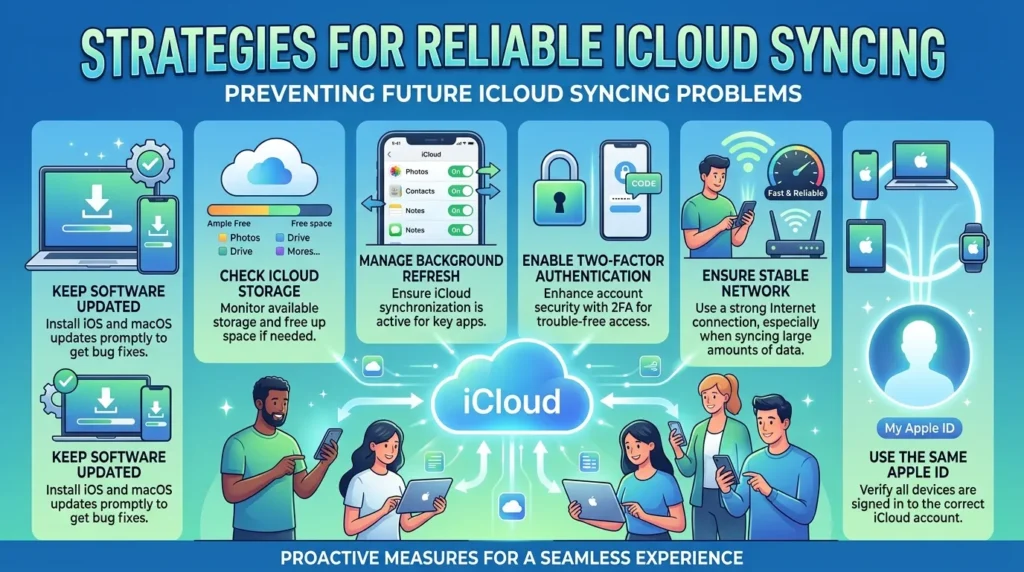
Follow these best practices:
- Keep iOS updated
- Maintain sufficient storage
- Use reliable Wi-Fi
- Avoid keeping Low Power Mode enabled continuously
- Monitor iCloud storage usage
- Restart devices occasionally
- Back up important data regularly
These habits help ensure uninterrupted synchronization.
Frequently Asked Questions
Is syncing with iCloud paused dangerous?
No. It typically indicates a temporary interruption rather than data loss.
Can I still use my iPhone?
Yes. Your device will continue functioning normally while syncing is paused.
Will my photos be deleted?
No. Photos remain stored locally or in iCloud until syncing resumes.
Why does syncing pause repeatedly?
Recurring pauses may indicate network issues, insufficient storage, or software problems.
Should I upgrade iCloud storage?
If your account is nearly full, upgrading can prevent future syncing interruptions.
Conclusion
Seeing the message “Syncing with iCloud Paused” can be frustrating, but it’s usually easy to fix. The notification simply means your device has temporarily stopped exchanging data with iCloud. Common causes include poor internet connections, low battery levels, full storage, software glitches, or Apple server issues.
By checking your connection, charging your device, freeing storage space, updating software, and reviewing iCloud settings, you can usually restore syncing within minutes. Once syncing resumes, your photos, files, contacts, notes, and other important information will continue updating across all your Apple devices automatically.
If you actually wanted the article for “nicknames for girls”, I can also create the full 2000–2500 word SEO blog with 10+ nickname categories and 10 nicknames under each category.